
Add an Unregistered Biller to Virginia PRSS
By George Ruan • June 9, 2026
Last updated: June 9, 2026.
Use this guide when your biller has never completed Virginia Medicaid Provider Portal registration. In PRSS, that person is called an Unregistered Delegate. You add the biller first, PRSS sends the registration emails, and the biller creates their own MES credentials before accessing your account.
Does your biller already have PRSS credentials? Do not add them again as unregistered. Follow the Registered Delegate instructions using their last name and Relationship Code.
Sections
Unregistered vs Registered Delegate
Unregistered Delegate: The biller does not yet have Provider Portal credentials. The first provider creates the delegate profile, and the biller finishes registration from the emails PRSS sends.
Registered Delegate: The biller already has Provider Portal credentials. A new provider adds the biller to the existing account with the biller’s last name and Relationship Code.
Before You Start
Confirm that your Primary Account Holder or Delegate Administrator can open Manage Delegates in PRSS.
Ask the biller for their individual profile information and unique email address. PRSS says a delegate’s email must be different from the provider’s Provider Portal email.
List the service locations and portal functions the biller actually needs.
Use a separate delegate profile for each person at the billing agency instead of sharing one login.
How to Add an Unregistered Biller
Log in to MES. Use the blue login button on the Virginia Medicaid MES site, open Provider Management, and enter the PRSS Portal.
Open Manage Delegates. From the PRSS navigation menu, select Maintenance, then Manage Delegates.
Choose Add Unregistered Delegate. This is the correct option only when the biller does not already have Provider Portal credentials.
Complete the delegate profile. Enter the biller’s profile information using their individual, unique email address.
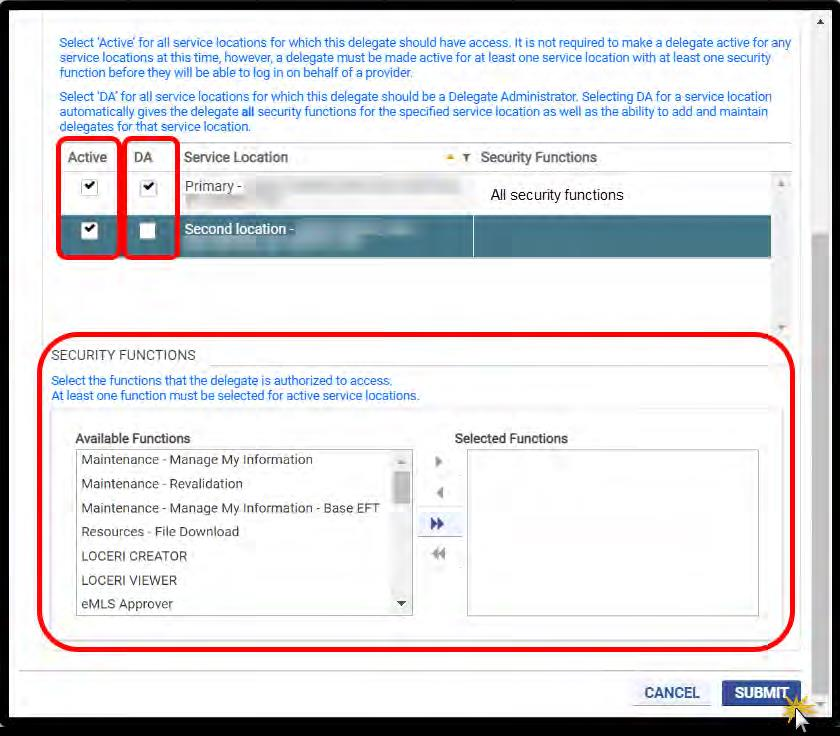
Assign service locations. Choose every service location the biller must work for. Access is location-specific, so an omitted location will not be available to the biller.
Assign security functions. Select only the functions needed for the billing relationship. At least one function must be assigned before PRSS will save the access.
Submit the delegate. PRSS displays a confirmation and sends the biller the emails needed to complete Provider Portal registration.
Have the biller finish registration. The biller follows the registration emails and creates their own MES login. They cannot access your account until registration is complete.
Verify access. After registration, the biller signs in, opens PRSS, selects your practice from Switch Provider, and confirms the expected service locations and functions are visible.
What the PRSS Screens Look Like
Step 1 — Choose Add Unregistered Delegate.

Step 2 — Enter the delegate profile and choose service-location access.
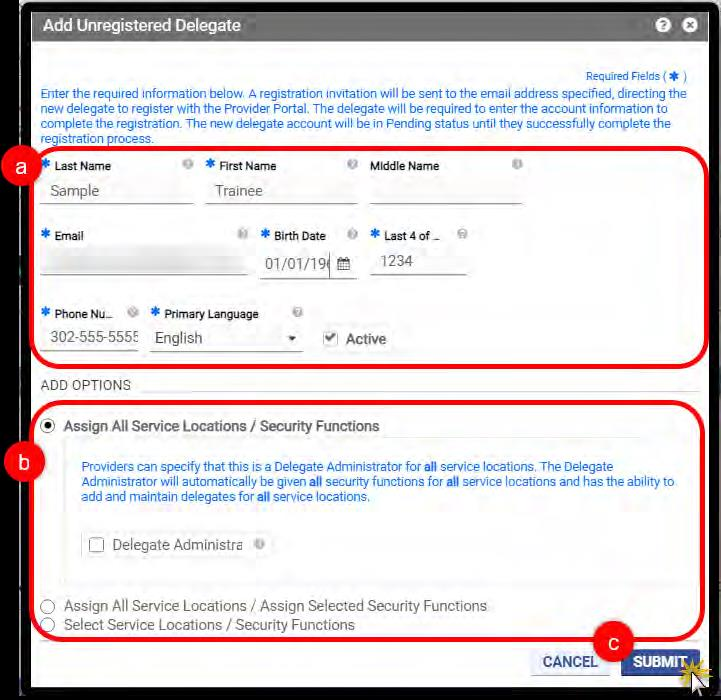
Step 3 — For limited access, move the required functions into Selected Functions and submit.
Screenshot source: Figures 129, 134, and 135 from the Virginia Provider Portal User Guide, Release 30.21, April 2026. © Gainwell Technologies.
Which Permissions Should a Biller Receive?
Match access to the work you hired the biller to perform. Common PRSS security functions for billing and credentialing work include:
Automated Response System (ARS): claim search, eligibility verification, and payment history.
Claims Entry: direct claim submission when the biller uses PRSS for DDE claims.
Resources File Download: provider and claim letters, remittance advice, and revalidation notices.
Maintenance – Manage My Information: viewing and updating provider information.
Maintenance – Revalidation: viewing revalidation information and due dates.
Message Center – View and Send Messages: secure correspondence with PRSS staff.
Delegate Administrator access includes all security functions and the ability to manage other delegates. Do not select it merely because someone is your biller; use it only when managing delegates is part of that person’s job.
What the Biller Does After Registration
Sign in to MES with their new credentials.
Open Provider Management, then the PRSS Portal.
Choose your practice from Switch Provider.
Open each assigned service location and confirm the expected claims, eligibility, payment, maintenance, or resource functions appear.
Open Portal Profile Maintenance and save the Relationship Code for future Virginia providers.
For the next Virginia client: the biller is now registered. Future providers should use the Registered Delegate process with the biller’s last name and Relationship Code instead of creating another profile.
PRSS Access Does Not Cover Every System
PRSS access supports state provider-portal work. Your biller may separately need access to Cardinal Care MCO portals, Acentra/Atrezzo service authorization, a clearinghouse, EFT/ERA tools, or your EHR. Adding an Unregistered Delegate does not create those other accounts.
Where Bomi Fits
Bomi helps therapy practices keep Medicaid billing and credentialing workflows organized: enrollment follow-up, portal handoffs, eligibility checks, claims, denials, EOB review, revalidation tracking, payer follow-up, and revenue operations. We still separate access correctly: your practice keeps control of provider accounts, and each user gets the access needed for their role.
Operational note: This post is general operational education, not legal, compliance, or billing advice. Confirm current DMAS, MES/PRSS, Cardinal Care MCO, Acentra/Atrezzo, provider-manual, and contract requirements before submitting enrollment, claims, or service authorizations.
Sources
Want Bomi to handle insurance billing?
Bomi helps therapy practices with benefit checks, claims, denials, balances, CAQH, attestations, and revenue management.
Talk to Bomi about billing