
Update a Wyoming Medicaid Service Location
By George Ruan • July 28, 2026
Last updated: July 28, 2026.
Use a Change of Circumstance, not a new enrollment. If a Wyoming Medicaid provider is already enrolled and only the service location is wrong, the provider updates the existing record through a Change of Circumstance (CoC).
Wyoming Medicaid uses the HHS Tech Group Discover Your Provider (DyP) portal for provider enrollment maintenance. The provider keeps control of the provider-owned login and submits the address correction from the existing provider file. There is no reason to share a password or create a duplicate enrollment for a service-location correction.
Sections
Before You Start
Use the provider-owned DyP account. Sign in with the email already registered to the enrolled provider file. Do not email or otherwise share the portal password.
Write down the old and new locations. Include the full street address, suite, city, state, ZIP code, and any location-specific phone or contact information that changed.
Know which address type is changing. A primary service location, secondary service location, mailing address, and billing address are separate choices in the CoC flow.
Keep supporting documents available. The official help center says the portal may request updated documentation depending on the fields changed.
Open the Wyoming DyP Provider Portal
Go to the Wyoming DyP Provider Portal and select Sign In / Register. The public page identifies “Submit change of circumstance” as a function of a secure provider account.
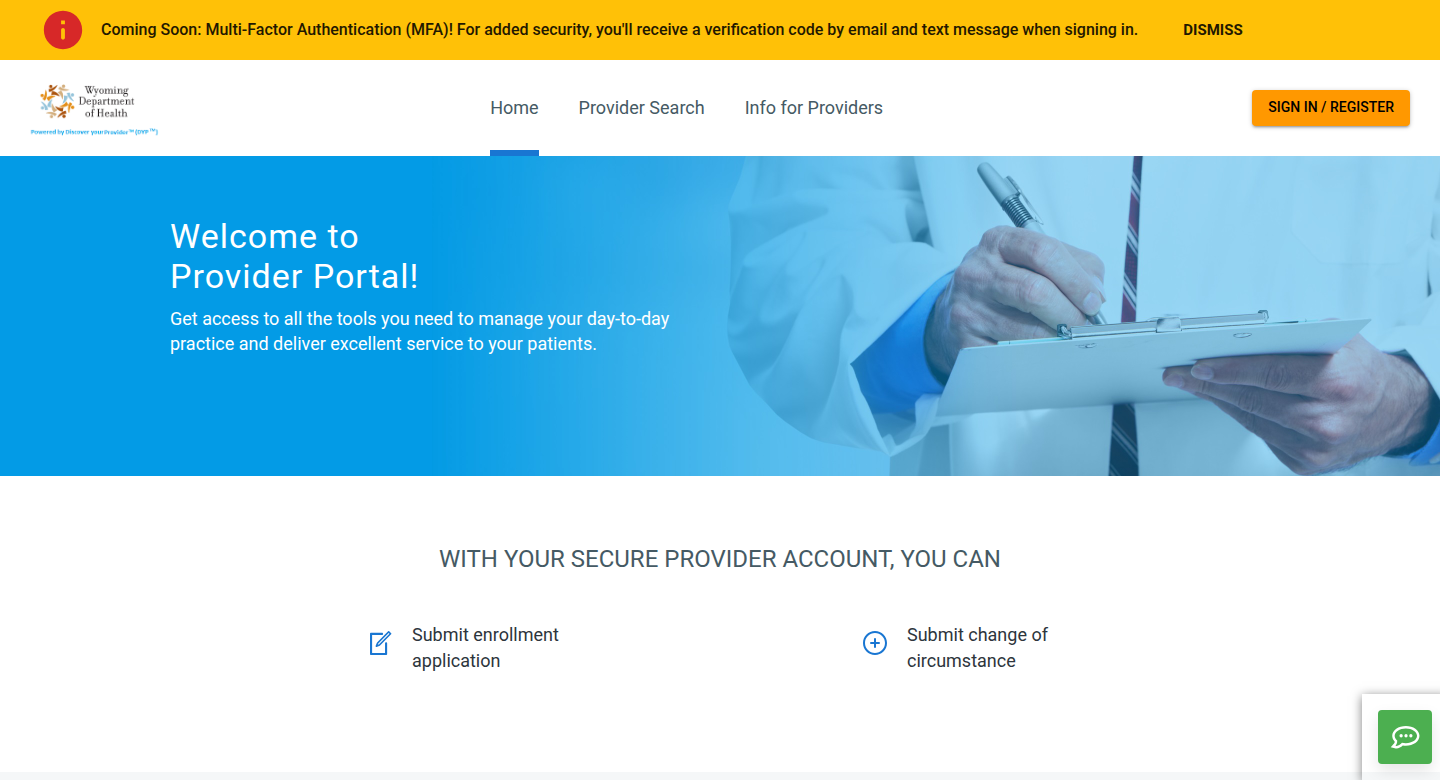
Screenshot source: Wyoming DyP Provider Portal, captured July 28, 2026. © Wyoming Department of Health and HHS Technology Group.
Submit the Service-Location CoC
Sign in to the existing provider file. Use the provider-owned account associated with the enrolled individual or organization.
Open the CoC tab. The official help center directs providers to start address changes from the Change of Circumstance tab in the provider enrollment portal.
Initiate a new CoC request. Do not start Individual Enrollment or Group Enrollment when the provider is already enrolled.
Choose the correct address section. For the main practice location, choose Primary Service Location. Use Secondary Service Location only for an additional enrolled site. Address Details is for mailing or billing addresses.
Enter the corrected location. Replace the obsolete address with the complete current service address. Review every location field and leave unrelated enrollment, ownership, pay-to, and tax information unchanged unless it also needs correction.
Upload requested documents. Add only the documentation the portal requests for the fields being changed.
Review the change. DyP highlights changed information in green. Confirm that the new location is highlighted and that no unrelated fields changed.
Submit the CoC. Saving a draft is not the same as submitting. Save the confirmation or request reference after the portal accepts the submission.
Wyoming’s Address-Change Instructions
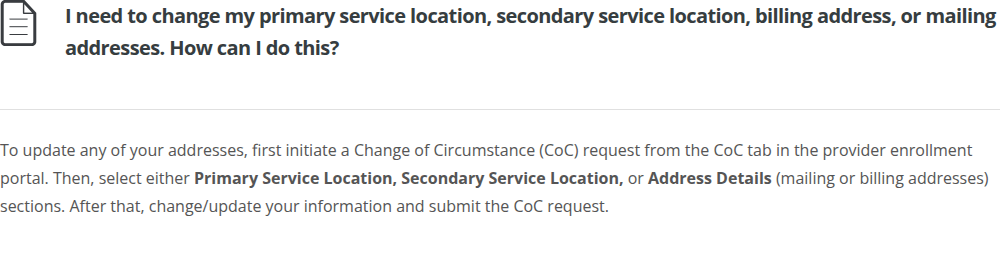
Screenshot source: Wyoming DyP Help Center address instructions, captured July 28, 2026. © HHS Technology Group.
Track the Request Until It Is Approved
Return to the CoC tab and expand the request to see its timeline. Wyoming lists these possible statuses: In Progress, Submitted, Under Review, Requested Additional Information, Pending Review, Pending Approval, Approved, and Denied.
Requested Additional Information: open the request, read the payer’s question, and provide the missing information or document.
Approved: the approved changes have been applied to the provider data. Verify that the new service location appears in the provider file.
Denied: read the denial reason before starting another request. Correct the stated issue or contact Enrollment Services for guidance.
When Can You Bill from the New Location?
Wait until the approved change appears. Wyoming Medicaid tells providers to allow one to two business days for a CoC update to appear in the Provider Portal before submitting claims.
For a service-location-only correction, do not change the provider’s NPI, pay-to identity, EIN, or W-9 information unless one of those items is independently wrong. Update any separate practice systems, clearinghouse records, payer directories, and NPPES records that also carry the old address; a Wyoming CoC does not automatically change those outside systems.
What to Send Your Biller
You do not need to send your portal credentials. Instead, send the biller one of the following after submission:
the CoC confirmation or request reference;
a screenshot showing the request in Submitted or Under Review status;
the approval notice; and
a screenshot of the updated Provider Data page after the new service location appears.
Redact passwords, verification codes, bank information, full tax identifiers, and unrelated provider data before sharing screenshots.
Need Help?
For enrollment, demographic verification, or CoC questions, contact Wyoming Enrollment Services at [email protected] or 1-877-399-0121.
Sources
Operational note: Portal labels and payer requirements can change. Confirm the current DyP instructions and Wyoming Medicaid guidance before submitting provider-data changes or claims.
Want Bomi to handle insurance billing?
Bomi helps therapy practices with benefit checks, claims, denials, balances, CAQH, attestations, and revenue management.
Talk to Bomi about billing