
How to Add Bomi as Your Biller in TherapyNotes
By George Ruan • June 27, 2026
Once you add Bomi as a Practice Biller, we handle your claims, payments, and reports for you — so you can get back to seeing clients sooner.
To manage billing on your behalf, Bomi needs access to your TherapyNotes account. The cleanest and safest way to grant this is to add Bomi as a Practice Biller user. This role is purpose-built for billing partners: it gives Bomi exactly the access needed to manage your claims, payments, and reports — and no access to your clinical notes.
Good to know: TherapyNotes bills per active user account, so adding a biller can change your subscription rate. TherapyNotes shows you any change before you confirm, and you can review the details on your Subscription settings page.
Sections
Before You Start
You need to be a Practice Administrator. Only a Practice Administrator can add and edit TherapyNotes users, change roles, and reset passwords. If that is not you, ask whoever administers your practice's account to follow these steps, or to grant you Practice Administrator access first.
You will need Bomi's billing email. Use the email address your Bomi onboarding specialist gave you as the new user's email so the login details reach us.
Each user needs their own login. TherapyNotes requires every end user to have their own individual account — shared logins are not permitted — so add Bomi as its own user rather than sharing yours.
What the Practice Biller Role Can Access
Before you grant access, here is exactly what the Practice Biller role lets Bomi do — straight from TherapyNotes. A Practice Biller has full billing access to all patients in the practice. They can:
Verify patient insurance benefits
Generate and track claims
Enter patient and insurance payments
Run billing reports
Create Contact and Miscellaneous notes, and edit Patient Billing Comments and Policy Comments
What the role cannot do: a Practice Biller cannot see your clinical notes or have their own calendar unless they are also given the Clinician role. It is a billing-focused role, so your clinical documentation stays under your control.
Step-by-Step: Adding Bomi as a Practice Biller
Open your Staff settings and add a user. In the left navigation, click Staff, then click the + New User button in the top right.

Select the Practice Biller role. On the new user form, find the Roles section, scroll to Billing Access, and check Practice Biller.
This single role is all Bomi needs. You do not need to add the Clinician, Practice Administrator, or any other role — Practice Biller on its own covers claims, payments, and benefits.

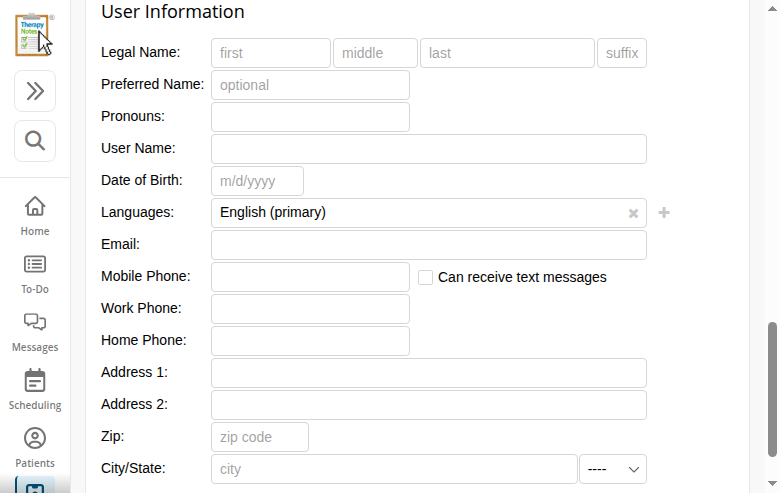
Enter the biller's information. In the User Information section, add a Legal Name, a User Name to log in with, and the Email your Bomi onboarding specialist provided.
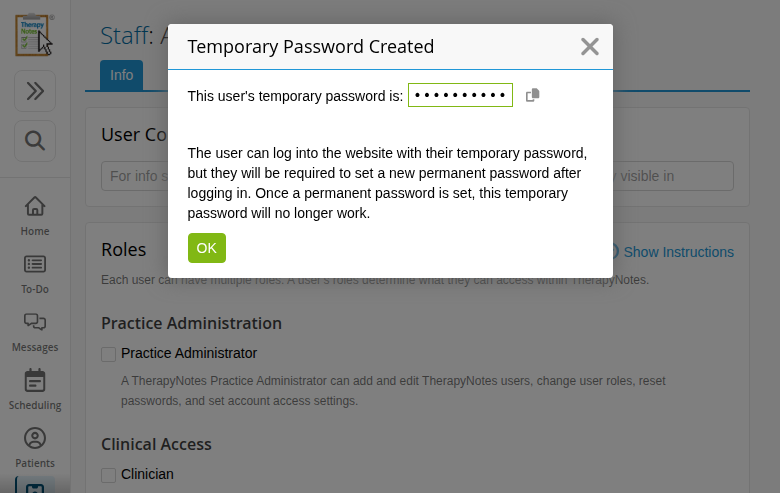
Save and copy the temporary password. Click Save New User. TherapyNotes generates a one-time temporary password and shows it once — click Copy to Clipboard so you can pass it along. Bomi uses it for the first login and is then prompted to set a permanent password.
Share your Practice Code and the temporary password with Bomi. Send us two things: your practice's Practice Code (each user enters it to log in) and the temporary password from the previous step. The new user now appears in your Staff list with the Practice Biller role.

That is it. Once Bomi logs in with the temporary password and sets a permanent one, we take it from there.
What Happens Next
Bomi logs in with the temporary password, sets a permanent password, and confirms access — usually within one business day.
We begin managing your billing: verifying benefits, submitting and tracking claims, posting payments, and running reports.
You retain full ownership of your account. You can review or change Bomi's access anytime from Staff, and deactivate the user whenever you like.
For TherapyNotes' own documentation on adding users, see their help article: Create or Edit a User.
Want Bomi to handle insurance billing?
Bomi helps therapy practices with benefit checks, claims, denials, balances, CAQH, attestations, and revenue management.
Talk to Bomi about billing