
TennCare Biller Access
By George Ruan • July 6, 2026
Last updated: July 6, 2026.
If you hired a biller for TennCare work, do not send your administrator username and password. Give the biller their own TennCare Online Services staff access through the account administrator workflow.
TennCare says the account administrator is responsible for adding, deleting, and modifying staff, and its Online Services page says staff access must be requested through the administrator when the account is already signed up through MyTennCare Login.
Short version: Your biller needs their own staff access. The administrator requests a New User Setup through TennCare IS Service Portal; the biller signs the Acceptable Use Policy before account creation completes.
Sections
Why Separate Staff Access Matters
Auditability: the practice can tell who accessed the account.
Offboarding: a former biller can be removed without disrupting the administrator.
Least privilege: the biller gets the access needed for eligibility and billing work instead of the owner’s full login.
Continuity: the practice keeps control of the TennCare account even when vendors change.
How the Official Staff Setup Works
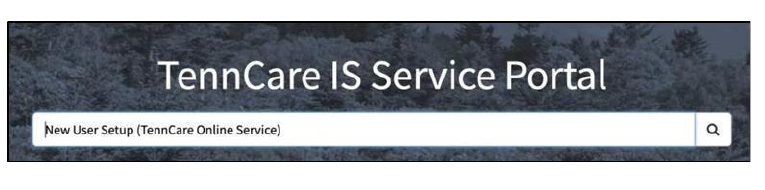
The provider administrator opens the TennCare IS Service Portal.
The administrator searches for New User Setup (TennCare Online Services).
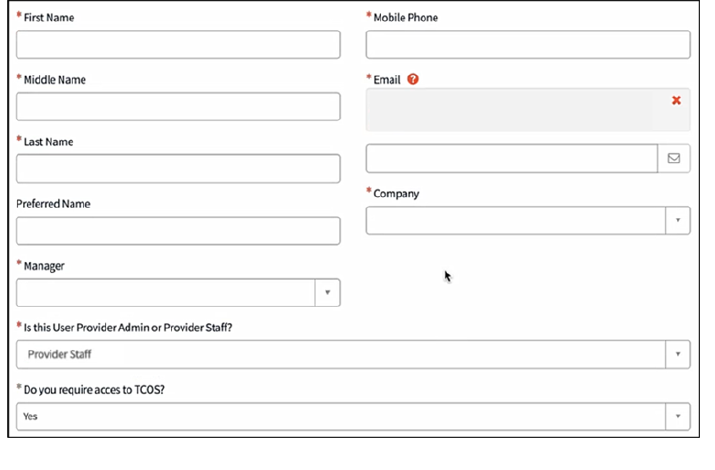
The administrator enters the provider staff user’s name, mobile phone, email, company, and TCOS access details.
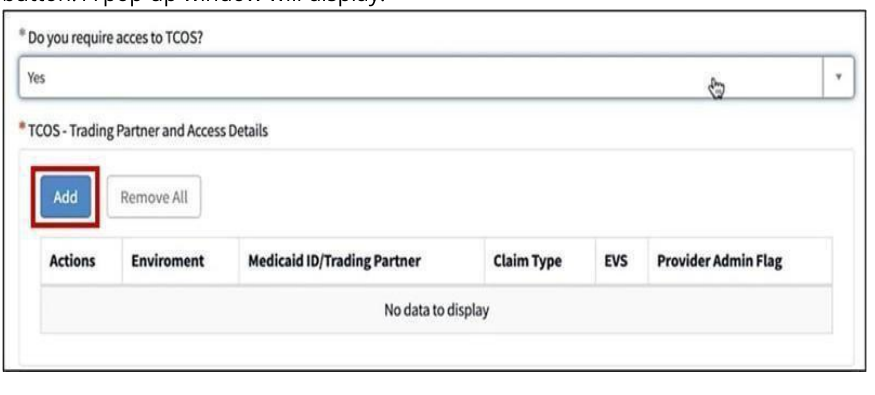
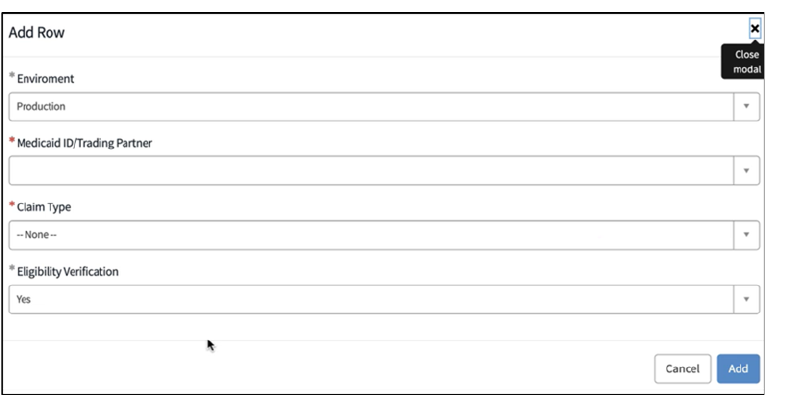
For TCOS Trading Partner and Access Details, the administrator adds the Medicaid ID / Trading Partner and selects the relevant access details, including eligibility verification where appropriate.
The administrator submits the ticket with Order Now.
The staff user receives the account setup process after the request is fulfilled, and the Acceptable Use Policy must be signed before account creation can be completed.
What Bomi Needs After Access
The provider or group Medicaid ID and NPIs.
Which MCO contracts are active or pending.
Which services and locations should be checked.
How claims are routed today: clearinghouse, MCO portal, EHR, or manual follow-up.
Where TCOS Access Ends
TennCare Online Services access does not automatically create BlueCare, TennCare Select, Wellpoint, UnitedHealthcare, Availity, clearinghouse, or EHR access. Keep a separate access checklist for each plan and platform.
Step 1 — Search for New User Setup in the TennCare IS Service Portal.
Step 2 — Enter the provider staff profile fields.
Step 3 — Add TCOS Trading Partner and Access Details.
Step 4 — Select Medicaid ID, claim type, and eligibility verification access.
Step 5 — Save the submitted request number and status.
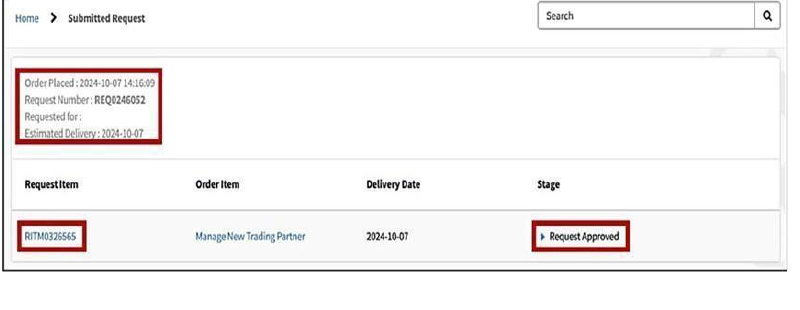
Screenshot source: Creating a New Provider Staff Account, TennCare / TN.gov, January 2026.
Where Bomi Fits
Bomi helps therapy practices keep the moving pieces aligned: TennCare provider registration, Data Spring/CAQH maintenance, Medicaid IDs, group rosters, MCO applications, portal access, eligibility checks, claim routing, denials, revalidation reminders, and revenue operations. The goal is not just approval; it is billable, verified access for the members you actually see.
Operational note: This is general billing and credentialing education for therapy practices, not legal, compliance, or payer-specific billing advice. Confirm current TennCare, Data Spring/CAQH, MCO, provider-manual, authorization, telehealth, and contract requirements before submitting enrollment, claims, or portal requests.
Related Tennessee Guides
Sources
Want Bomi to handle insurance billing?
Bomi helps therapy practices with benefit checks, claims, denials, balances, CAQH, attestations, and revenue management.
Talk to Bomi about billing