
NCTracks MCR: Add Location and Affiliation
By George Ruan • August 18, 2026
Last updated: August 18, 2026.
Bottom line: if your North Carolina Medicaid individual provider record needs both a new service location and a group affiliation, start a full NCTracks Manage Change Request under the individual NPI. Do not use the abbreviated Add/Update Affiliations option for that situation. NCTracks says that shorter path can add the billing affiliation, but it does not automatically add the group service location to the individual provider record.
This guide is for therapists, speech-language pathologists, behavioral health clinicians, and other small-practice providers who need their individual NCTracks record tied correctly to a group or organization. That often comes up when a practice adds a biller, joins a group, opens a new location, or has claims held up because the rendering provider location or affiliation does not match the provider record.
The mistake to avoid is simple: an affiliation alone is not the same thing as a service location. NC Medicaid has repeatedly told providers that individual-to-organization affiliations and service locations affect claims, directories, and health-plan display. If the group address is missing from the individual record, downstream systems may not show the provider the way the practice expects.
Sections
- When This Guide Applies
- Before You Log In
- Step 1: Start the MCR Under the Individual NPI
- Step 2: Choose the Full MCR Option
- Step 3: Add the Service Location
- Step 4: Complete Taxonomy and License Details
- Step 5: Affiliate the Individual Provider to the Group
- Step 6: Review, Sign, and Save Proof
- What Status to Expect
- Common Mistakes That Delay Billing
- Where Bomi Fits
- Sources
When This Guide Applies
Use this workflow when all of the following are true:
The individual provider is already enrolled or active enough to appear in the Manage Change Request section of NCTracks.
The group or organization NPI is already enrolled and approved in NC Medicaid.
The individual provider needs the group service location added to their individual record.
The individual provider also needs to affiliate to that group so the group can bill and receive payment for covered services rendered by the individual provider.
If you only need to add an affiliation and the service location is already correct, the abbreviated path may be enough. If you need both pieces, use the full MCR path below.
Before You Log In
Have the core details ready before opening the application. The official NCTracks job aid notes that the application must be completed in one session once started from this path.
Your individual NPI. The MCR starts from the individual rendering or attending provider record, not the group record.
The group or organization NPI. You will search this NPI on the Affiliated Provider Information page.
The service location address. Use the physical location where services are rendered or coordinated and records are housed, consistent with current NCTracks service-location rules.
Taxonomy and license details. Adding a location can require taxonomy and applicable accreditation or license information for the new service location.
NCID, password, and PIN. The final submission is electronically signed in NCTracks.
Service-location rule to verify: NC Medicaid announced that, effective August 25, 2024, providers cannot modify an existing service location address in NCTracks without creating a new service location address. Check the current NCTracks rule before changing an old address instead of adding the new one.
Step 1: Start the MCR Under the Individual NPI
Go to NCTracks, open the Providers tab, and log in through the Secure Provider Portal.
On the provider home page, open Status and Management.
In the Manage Change Request section, select the radio button beside the individual NPI that needs the update, then click Update.
If the Manage Change Request section shows no data, NCTracks says to check Submitted Applications and Saved Applications. A saved or submitted MCR can block a new one until it is finished or processed.
Step 2: Choose the Full MCR Option
On Requested Manage Change Request Type, choose Complete multiple changes or review your complete provider record. This is the key screen. It is the path NCTracks uses in its service-location-plus-affiliation job aid.
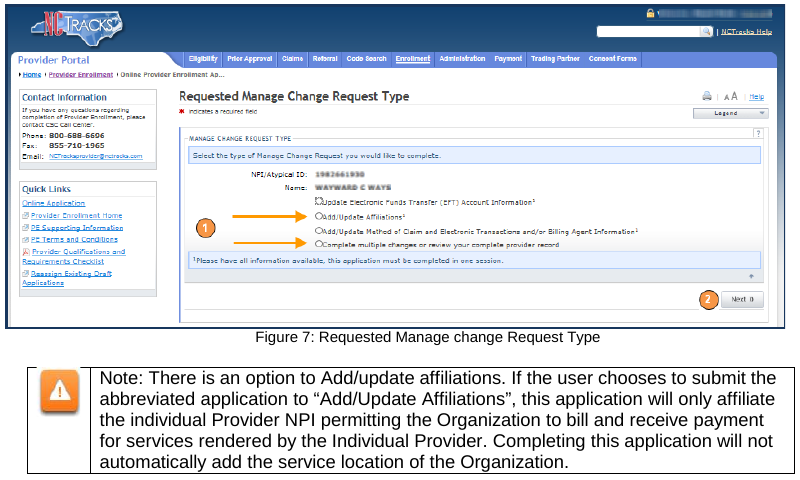
Screenshot source: NCTracks job aid for adding a service location and affiliating an individual provider to a group, page 5.
Do not pick the shorter option if the location is missing. NCTracks says Add/Update Affiliations permits the organization to bill and receive payment for services rendered by the individual provider, but it does not automatically add the organization service location.
From the next screen forward, use the Next button at the bottom right instead of jumping around the left-side menu. NCTracks requires the pages to be reviewed before submission, and skipped pages can create an incomplete-page error at review.
Step 3: Add the Service Location
When you reach Service Locations, select Yes for adding an additional service location. Enter the location name, phone or fax fields required by the screen, address, city, state, ZIP code, begin date, and any serving-county fields that apply. Then click Verify Address and Add.
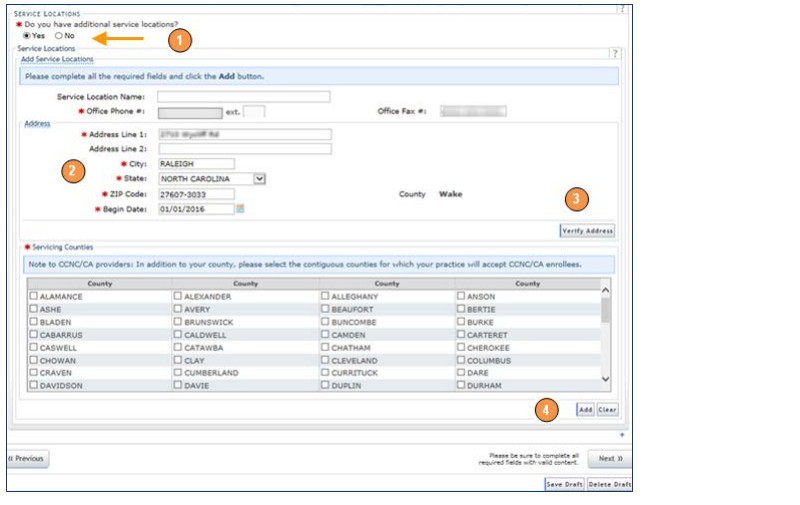
Screenshot source: NCTracks job aid for adding a service location and affiliating an individual provider to a group, page 6.
NCTracks checks the address against USPS. After it accepts the address, the service-location table appears near the top of later pages. Make sure every location you are working on shows Completed before moving on.

Screenshot source: NCTracks job aid for adding a service location and affiliating an individual provider to a group, page 7.
Step 4: Complete Taxonomy and License Details
Adding a service location can require more than the address. The job aid walks through adding taxonomy classification and accreditation information for the location. For many licensed clinicians, that means selecting the provider type, classification or specialization where available, the begin date, license agency, license type, license state, license number, and effective date.
This is one place where a current provider record matters. Use the same taxonomy and license facts that support the services you actually render, and do not guess. If NCTracks asks for a field tied to credentialing or licensing, verify it against your records before submitting.
Step 5: Affiliate the Individual Provider to the Group
Continue with Next until you reach Affiliated Provider Information. Select Yes when NCTracks asks whether you want to link or affiliate with another enrolled provider. Enter the group or organization NPI, then click Lookup NPI.
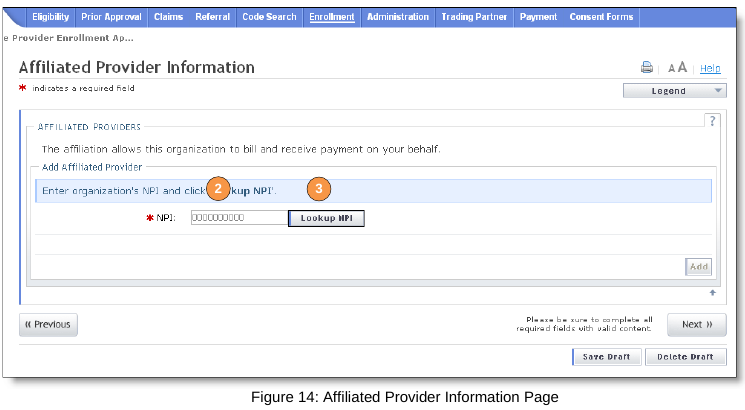
Screenshot source: NCTracks job aid for adding a service location and affiliating an individual provider to a group, page 10.
When NCTracks returns results, select the correct provider location and click Add. If the group does not appear, NCTracks says to confirm that the organization enrollment is fully completed and approved.
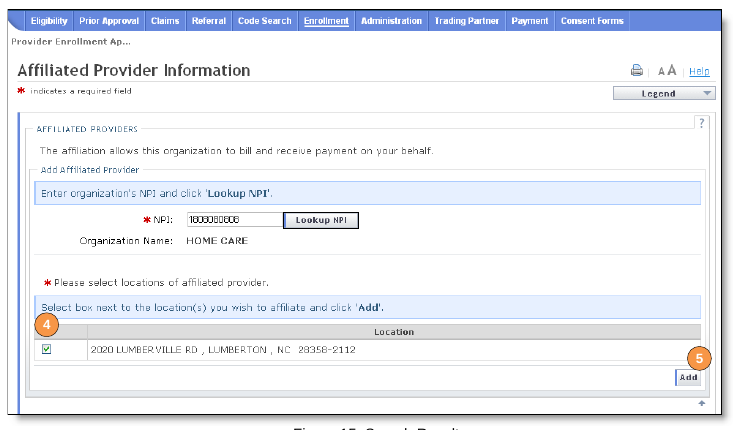
Screenshot source: NCTracks job aid for adding a service location and affiliating an individual provider to a group, page 11.
Step 6: Review, Sign, and Save Proof
Before signing, open Review Application and check the left-side page list. Every page should have a green check mark. Also verify the contact email. If the email is wrong, update it on Basic Information before submitting.
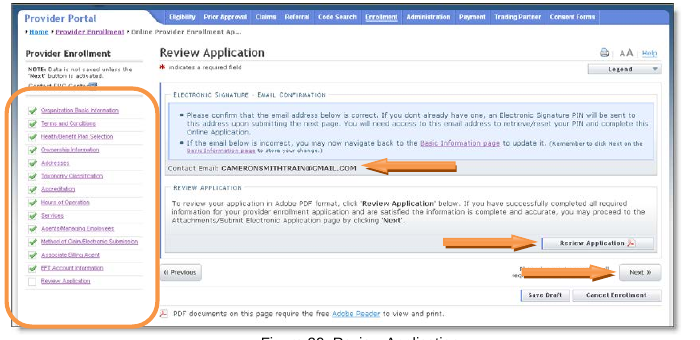
Screenshot source: NCTracks job aid for adding a service location and affiliating an individual provider to a group, page 14.
If NCTracks shows a Complete all Pages in the Application error, open the pages without check marks and use Next through each section. Once the review is complete, continue to the electronic submission page, enter the required NCID credentials and PIN, and submit. Save or print the final application and cover sheet for your records.
What Status to Expect
The status depends on what changed. NCTracks says an application may show Approved when only the affiliation changed. When you add service locations or other changes, status may show In Review because those updates can require review or credentialing.
Do not assume the billing issue is fixed until the MCR has processed and the individual record reflects both the active affiliation and the relevant service location. NC Medicaid has warned that missing affiliations or missing service locations can affect claims processing and provider-directory display.
Common Mistakes That Delay Billing
Starting from the group record. The individual provider or their authorized office administrator maintains the individual-to-group affiliation on the individual provider record.
Choosing Add/Update Affiliations when the location is missing. That can leave the service location off the individual record.
Skipping pages with the left navigation. Use Next so every page gets reviewed and checked off.
Forgetting taxonomy or license details for the added location. A new location may need its own taxonomy and applicable accreditation information before submission.
Treating NCTracks affiliation as managed-care contracting. NCTracks enrollment and group affiliation do not automatically make a provider in network with every NC Medicaid managed-care plan.
Where Bomi Fits
Bomi helps therapy practices keep these payer-operation details straight: credentialing steps, portal access, provider record updates, eligibility checks, claims, denials, EOB review, payer follow-up, and revenue workflows. For NCTracks work, Bomi can tell you which provider record needs the change, what information should be entered, and what proof to save. If only the provider or office administrator can electronically sign the MCR, Bomi will keep the handoff specific so you do not have to decode the portal from scratch.
This post is for general operational education and is not legal, compliance, credentialing, or billing advice. Always confirm current NC Medicaid, NCTracks, and managed-care-plan requirements before submitting enrollment updates, claims, authorizations, or attestations.
Sources
Growing a group practice?
Bomi helps coordinate insurance operations across providers, payers, rosters, claims, denials, and reporting.
See group support